Care Search
Search for a Subscriber
To access this view, perform the following steps.
-
Select the
 (Care) icon from the left navigation bar.
 -
Use the Subscriber Search field to look up a subscriber by entering any of the following:
-
Subscriber name
-
WAN IP address associated with the subscriber's service
-
MAC address associated with the CPE hardware deployed at the subscriber's site
-
The subscriber’s account number by which they are referenced in Mosaic Subscriber Insight
-
Phone number associated with the account
-
Billing address
-
Service address
-
The serial number on the equipment
-
Email associated with the account
-
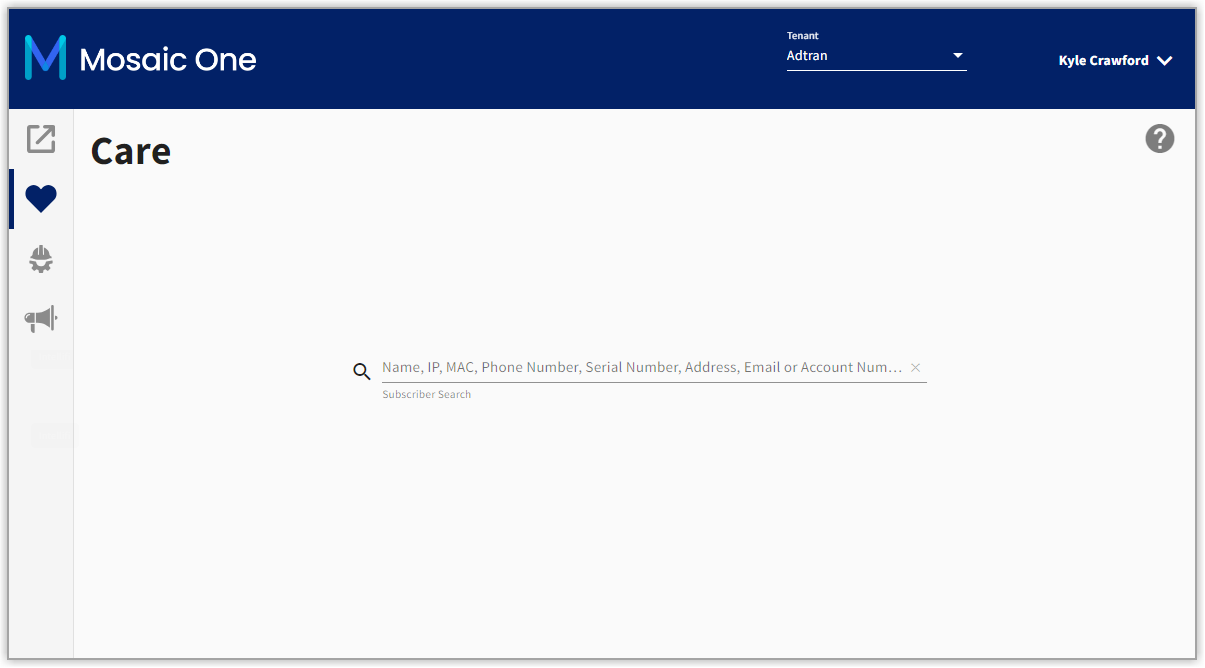
- Press the Enter key or select the
 icon to execute the search.
Search Functionality
The Care search results will match on any of the visible columns, but will only match if the exact text is present in a result as described below.
Examples of searches that will match Sally & Parker McGregor:
-
Parker McGregor
-
McGregor
-
Parker
-
Parker M
-
Sally
Examples of searches that will not match Sally & Parker McGregor:
-
McGregor Parker
-
M Parker
-
Sally McGregor
Search Results
Search results that meet your search terms will appear in the lower portion of the screen. There may be more than one result that meets your search criteria, so be sure to choose the correct subscriber from the list.
Near the top of that screen, you can adjust the search criteria by entering new search terms.
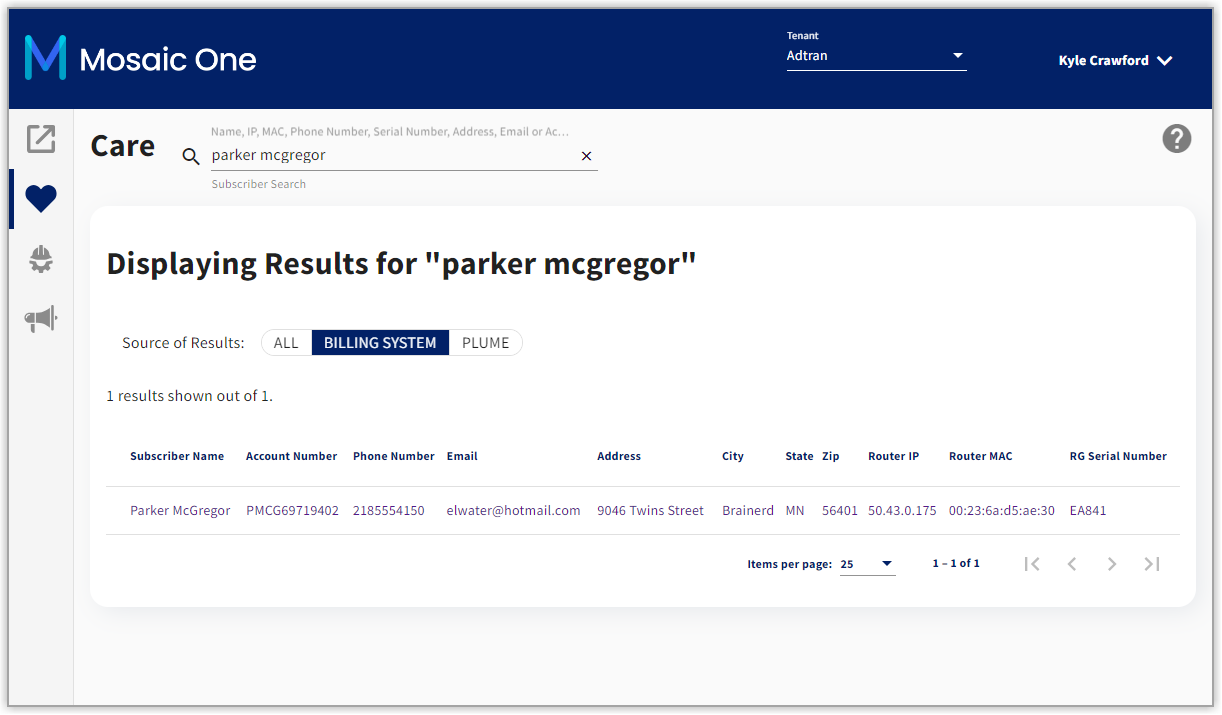
Select any of the blue text in the search results to link to the Care Subscriber Details page or select from one of the Applications column icons described above.